
Workflow with your agent
A session is a batch of instructions for one piece of work. You fill it while reading the code, review it, and hand it to the agent as one prompt.
The loop #
-
Start a session for the task. Ctrl+N, and name it after the work: “Search speedup”, “Error handling pass”. One session per task keeps the prompt focused.
-
Read and annotate. Walk through the code (or the diff of what you or the agent just changed) and put a note on everything that should change. Small, specific notes beat one long instruction.
-
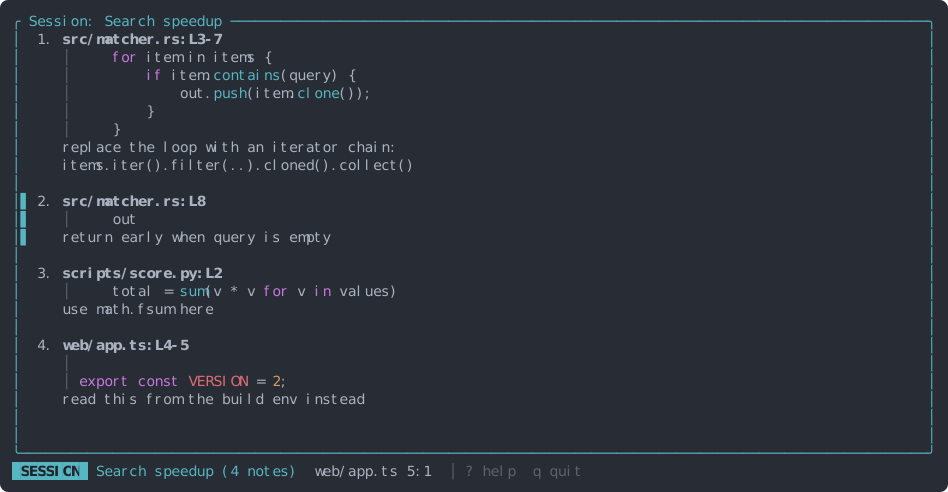
Review. 3 opens the Session view: each note with its location, code and instruction, in the order the agent will read them. Reorder with J and K, fix text with e, drop notes with d.
-
Send it. Copy with y and paste it into your agent, or hand it over from the shell.
-
Check the result. After the agent edits, the Diff view shows what changed. Add notes on that diff for the next round, in the same session or a new one.
Hand it to your agent #
The prompt is plain Markdown, so any agent that takes a prompt can use it. y copies it for
pasting; from the shell, tackline export prints it:
tackline export | claude -p
codex exec "$(tackline export)"
opencode run "$(tackline export)"
aider --message "$(tackline export)"
Paste it into the chat (y copies it), or with the Cursor CLI:
agent -p "$(tackline export)"
Paste it (y copies it), or save it to a file:
tackline export > prompt.md
tackline export "Session name" picks another session than the active one.
Claude Code extras #
A skill turns your notes into a slash command. Save this as .claude/skills/tackline/SKILL.md in
your repository (or ~/.claude/skills/tackline/SKILL.md for all of them) and run /tackline in
Claude Code:
---
name: tackline
description: Work through the notes in my active tackline session
allowed-tools: Bash(tackline *)
---

## My notes on the code

!`tackline export`

## Your task

Work through these notes in order. Each one names a file, the lines, the code
as it is now, and what to do there.
The !`tackline export` line runs when you invoke the skill, so Claude gets your current notes.
What the agent receives #
y and tackline export produce the same Markdown. Each note becomes a numbered item with its
location, the code as it is now, and your instruction:
# Search speedup

1. `src/matcher.rs:3-7`
   ```rs
       for item in items {
           if item.contains(query) {
               out.push(item.clone());
           }
       }
   ```
   replace the loop with an iterator chain

2. `scripts/score.py:2:13-2:38`
   ```py
       total = sum(v * v for v in values)
   ```
   use math.fsum here
- Line spans look like
3-7; character selections like2:13-2:38(line:column), and the snippet still shows the full lines for context. - Snippets longer than 40 lines are cut short with
…. - The code fence language comes from the file type, so the agent knows what it’s reading.
Writing notes that work #
- Say what to do, not what’s wrong. “Return early when
queryis empty” gets better results than “this is inefficient”. - Select exactly the code it’s about. The selection is the agent’s context: a whole function for a refactor, one expression for a rename.
- Add constraints. “…keep the public signature”, “…don’t add dependencies”.
- Use order. Notes are read top to bottom: put setup first (“add a helper
parse_range”) and its uses after.
In the note popup, end a line with \ and press Enter for a newline, or use
Shift+Enter in terminals that report it. Enter on its own saves.
When the code changes #
Notes are anchored to the code they were written on, not just to line numbers. When lines are
added above a note, or the code moves within the file, the note moves with it. That includes the
agent’s own edits: a note on fn parse still points at fn parse after the agent added imports
above it.
If the annotated code is gone, the note is stale: it shows ⚠ and is left out of the prompt, with a warning when you copy or export. Delete it with d on its line (or in the Session view), and write a new note on the new code.
Several sessions #
Keep a session per task or per round with the agent. Ctrl+O switches the active session; new notes go there. A note in the wrong session can be moved.