
tackline
A tackline is the short length of line on a signal halyard that separates the flags. This tool hangs signals on lines of code for an agent to read.
tackline is a terminal app (with a web version) for steering coding agents. You browse your files or your git diff, select the code you want changed, and write an instruction right on it. Those notes collect in a session, and the session compiles into one Markdown prompt.
The prompt is plain Markdown, so it works with Claude Code, Codex, opencode, aider, Cursor, or anything else that takes a prompt: paste it, or hand it over from the shell (how).
Get started crates.io GitHub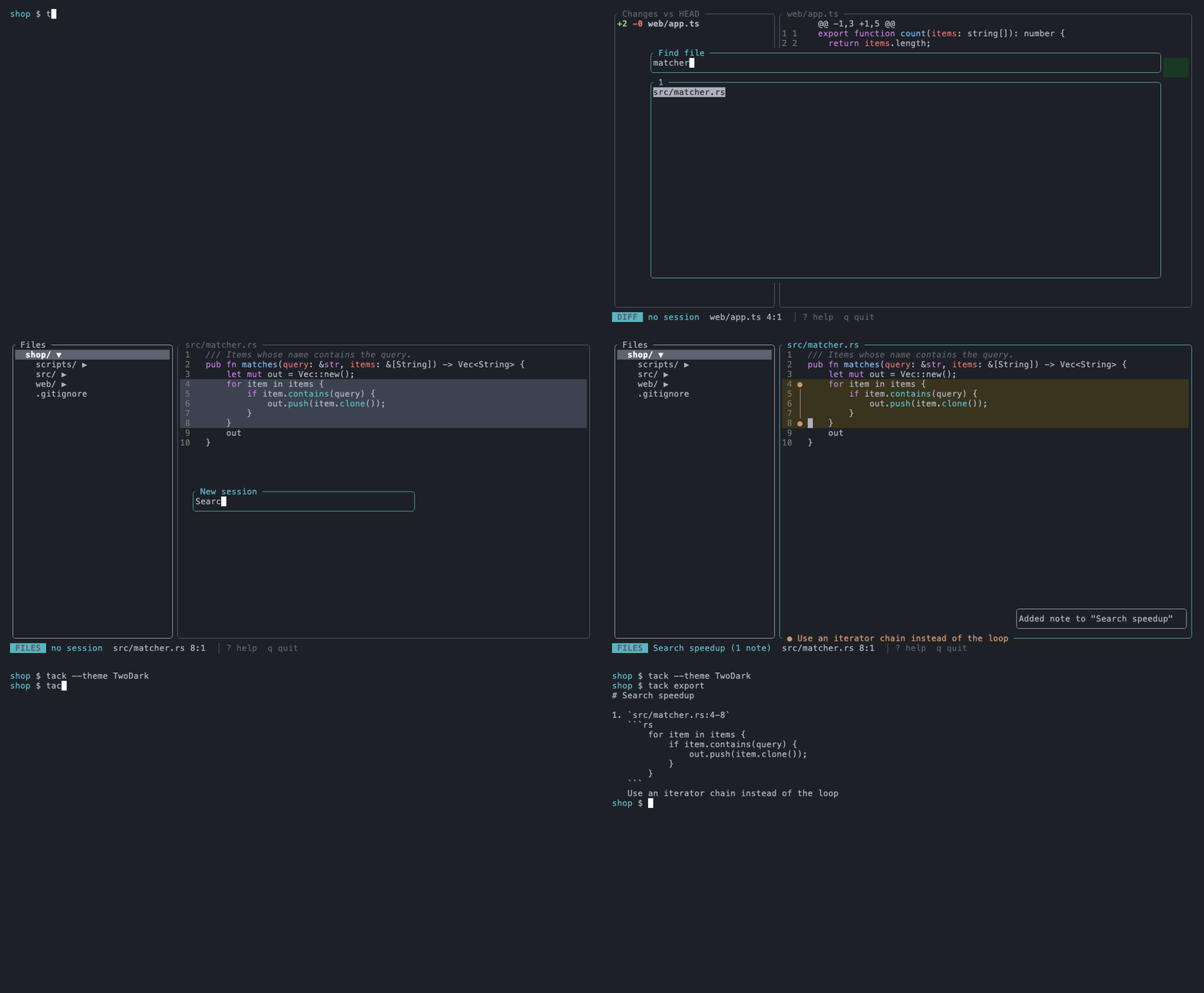
Why it exists #
Telling an agent where to work is the slow part of a prompt. “In matcher.rs, the loop around
line 3, no, the one inside matches…” costs time and still goes wrong. With tackline you point at
the code itself:
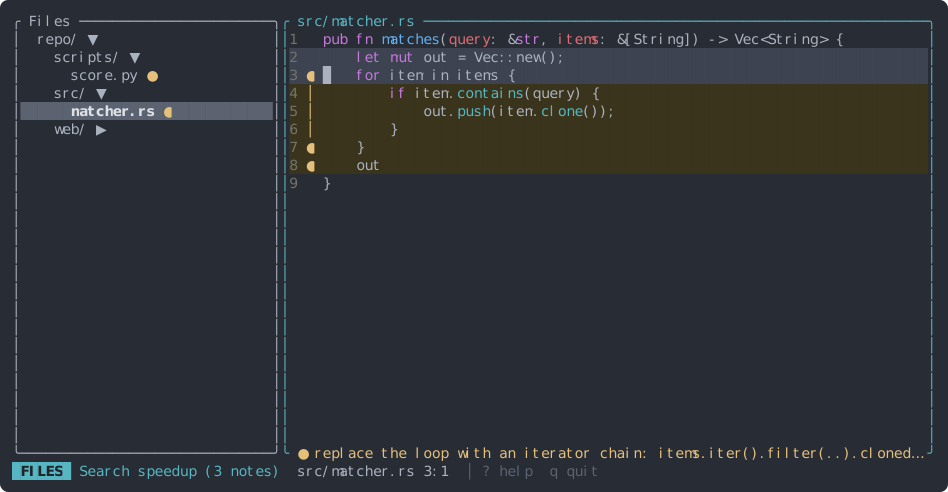
- Precise. Every instruction carries its file, line span and the code it’s about, so the agent doesn’t have to guess.
- Batched. Collect a dozen small instructions while you read the code, then send them as one ordered prompt instead of a dozen chat messages.
- Durable. Notes follow the code when the file changes, and are saved as you go. Close the app, come back tomorrow, the session is still there.
- Reviewed before it’s sent. The Session view shows every note with its code in prompt order, so you can reorder, edit or drop notes before the agent sees them.
Notes are instructions and context for an agent (“make this async, keep the signature”), not verdicts on the code. There’s no approve/reject and nothing is posted anywhere: the output is a prompt.
How it works #
- Select code in the Files or Diff view: a line, a block or a few characters.
- Press c and write the instruction. It’s saved into the active session.
- Press 3 to review the session, then y to copy the compiled prompt and paste it into your agent, or hand it over from the shell.
Install it and make your first note in two minutes.
From notes to a prompt the agent can act on.
Select, write, edit, move and delete notes.
Every key on one page.