
Notes
A note is one instruction on one piece of code: a file, a line span (or a character span) and the text you write. Notes live in sessions.
Select code #
In the code pane of the Files or Diff view:
| To select | Do |
|---|---|
| Whole lines | V, then move with j / k (or arrows) |
| Characters | v, then move |
| Lines, editor style | Shift+↑ / Shift+↓ |
| Characters, editor style | Shift+← / Shift+→ |
| With the mouse | Drag in the code |
Press v or V again to stop selecting, Esc to clear the selection. Without a selection, a note goes on the line the cursor is on.
Write a note #
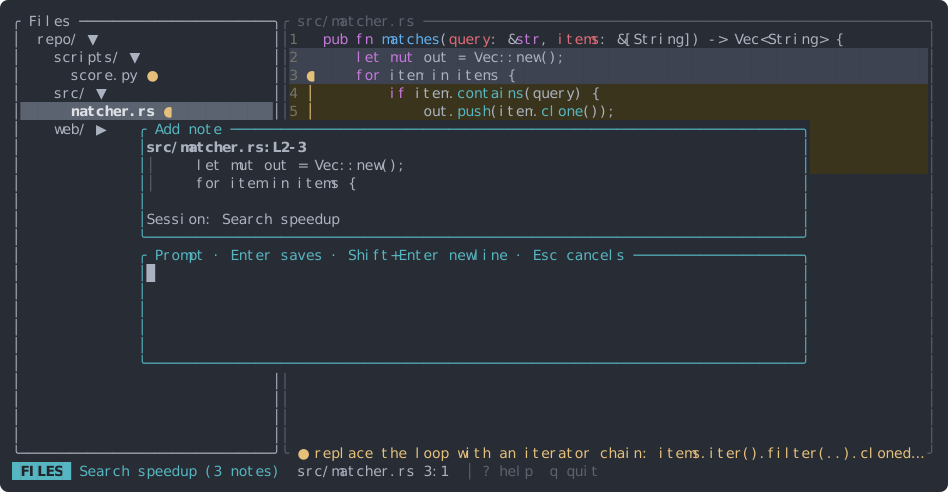
Press c. The note popup shows where the note goes (src/matcher.rs:L2-3), the first lines of
the code, and the session it will be saved in.
| Key | In the note popup |
|---|---|
| typing | The instruction |
| Enter | Save |
\ then Enter |
New line (the \ is removed) |
| Shift+Enter | New line, in terminals that report it (see Terminals) |
| Tab / Shift+Tab | Next / previous session |
| Esc | Cancel |
Saving to another session than the active one doesn’t change the active session. If no session exists yet, c asks for a session name first and then opens the note.
See your notes #
Code with a note in the active session (“tacked” code) stands out: its lines get a light yellow background, and the gutter marks them in yellow:
 3 ●     for item in items {
 4 │         if item.contains(query) {
 5 ●             out.push(item.clone());
 8 ●     out
●alone: a one-line note.●…│…●: a note over several lines, from first to last line.⚠in red: a stale note.
With the cursor on a tacked line, the bottom border of the code pane shows the start of that
note’s instruction, cut short with … when it doesn’t fit:
╰ ● replace the loop with an iterator chain: items.iter().filter(..)… ─────╯
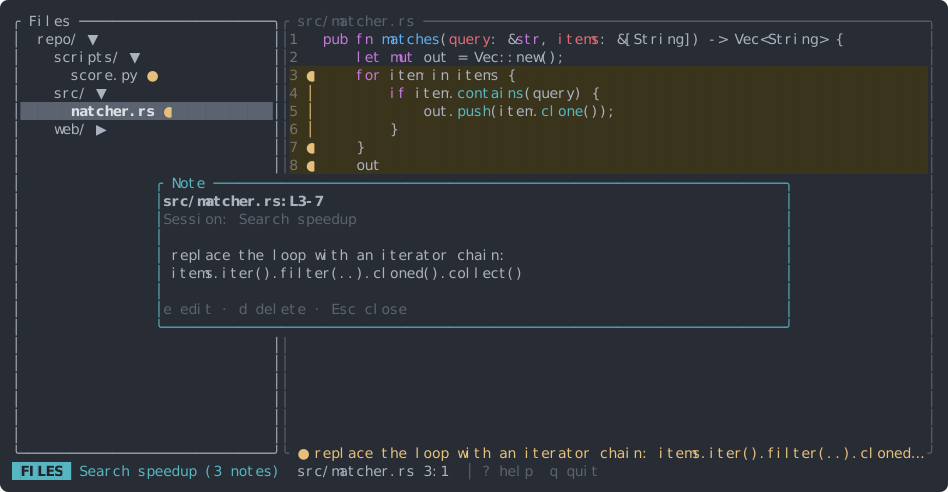
To read the whole note, press Enter on a tacked line. A popup shows its location, its session and the full text; from there e edits it, d deletes it and Esc closes it.
Files with notes in the active session get a ● in the file tree.
Edit a note #
Put the cursor on a noted line and press c: the popup opens with the note’s text, and Enter saves your changes. Selecting exactly the lines of a note and pressing c does the same. A selection that only overlaps a note makes a new note.
In the Session view, e edits the selected note.
Move a note to another session #
While editing a note, press Tab or Shift+Tab to pick another session, then Enter. The note moves there (to the end of that session) with your edits, and both sessions are saved.
Delete a note #
Put the cursor on a noted line and press d, or select the note in the Session view and press d. tackline asks first: y deletes, n keeps it.
Stale notes #
Each note remembers the code it was written on and a little of what was around it. When the file changes, tackline finds that code again:
- Lines inserted or removed above it: the note moves along.
- The code moved elsewhere in the file: the note follows it.
- The same code appears more than once: the copy with the most similar surroundings wins.
- The code is gone: the note becomes stale.
Stale notes show ⚠ in the gutter and the Session view, and are left out of the compiled prompt with a warning. They’re kept on disk, so if the code comes back (an undo, a reverted change) the note recovers.