
Diff view
Press 2. The Diff view shows your uncommitted work: staged and unstaged changes and untracked
files, compared to HEAD. It’s where you review what you (or the agent) just changed and write
the next round of notes.
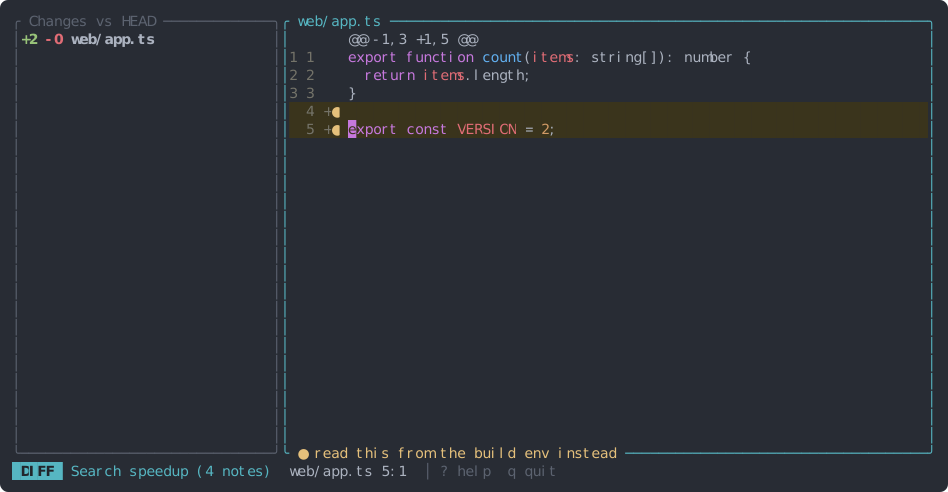
Reading the diff #
The left pane lists the changed files with their added and removed line counts. The right pane shows the selected file as a unified diff:
- Two line-number columns: the old line and the new line.
+lines on a green background were added,-lines on red were removed.@@ … @@lines start each changed region.
| Key | In the file list |
|---|---|
| j / k | Next / previous file (the diff follows) |
| Enter or Tab | Move into the diff |
| r | Reload the diff |
In the diff itself, all the usual movement, selection and search keys work, and r reloads too. The Files and Diff views each keep their own place, so you can switch back and forth with 1 and 2.
Notes on a diff #
Select added or unchanged lines and press c, as in the Files view. The note is stored on the file’s current line numbers, so it’s an ordinary note: it shows in the Files view too, and compiles the same way.
Removed lines no longer exist in the file, so they can’t have notes. Pressing c on a - line
or a @@ header shows a message instead.
Compare against a branch #
tackline --base main
tackline --base upstream/main    # a fork: everything since you branched off upstream
--base compares against the point where your branch left <rev> (git’s merge-base), so you see
only your own changes, even if main moved on since. Any branch, tag or commit works.
When the Diff view is empty or missing #
- No changes: tackline starts on the Files view, and the list says “No changes”.
- Not a git repository: the Diff view is off; 2 says so.